Why BitLocker Gets in the Way
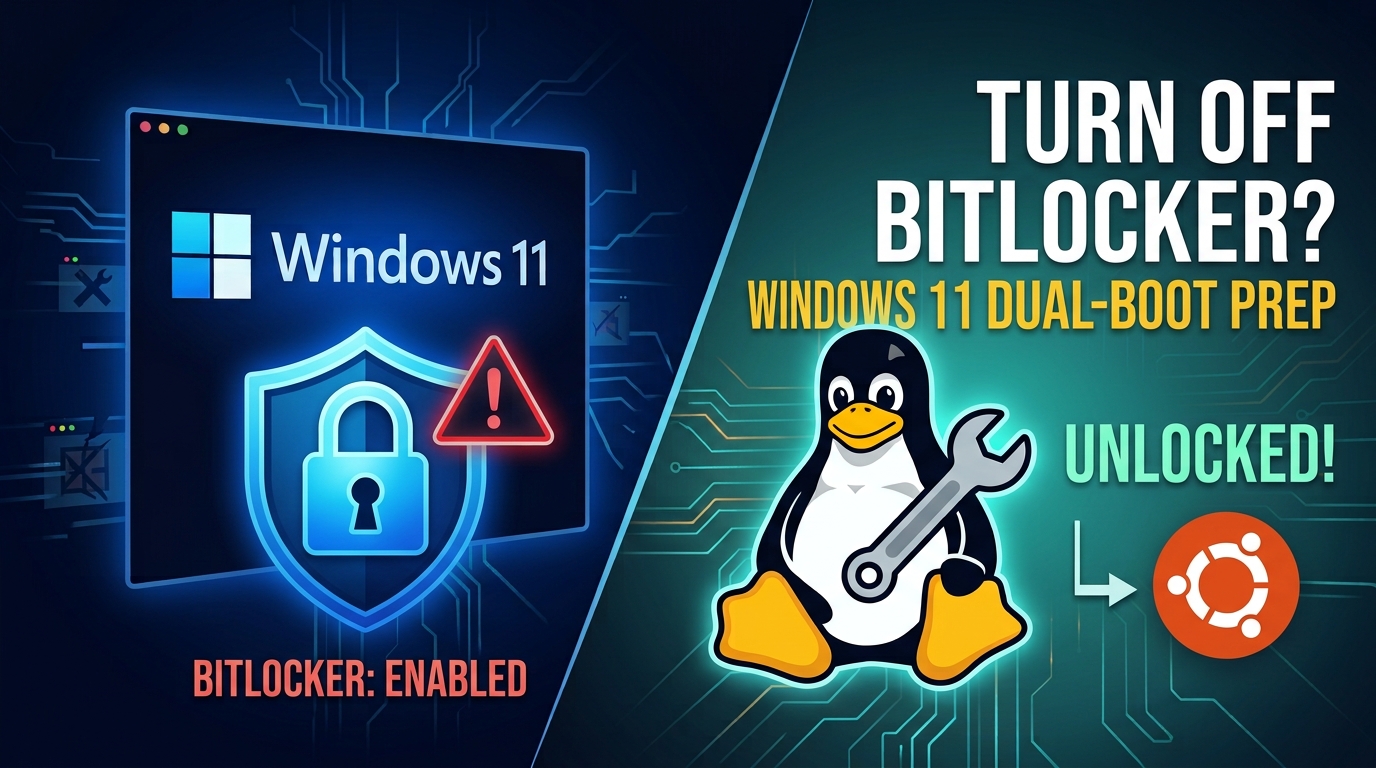
BitLocker encrypts the entire Windows partition. When Ubuntu tries to shrink that partition to make room for Linux, it cannot safely modify an encrypted drive. This is why the installer may fail, refuse to resize the partition, or show disk-related errors.
Decrypting the drive first removes this roadblock. Your files remain in place; only the protection is removed while you install Ubuntu. After the dual boot setup is working, you can turn BitLocker back on.
Prerequisites
- Windows 11 is running normally
- You have administrator access
- You have your recovery key saved somewhere safe
- You are ready to wait for the decryption to finish
Step 1: Open PowerShell as Administrator
Open the Start menu, search for PowerShell, right-click it, and choose Run as administrator. If Windows prompts you, click Yes to allow it.
Step 2: Check BitLocker Status
Run this command:
manage-bde -status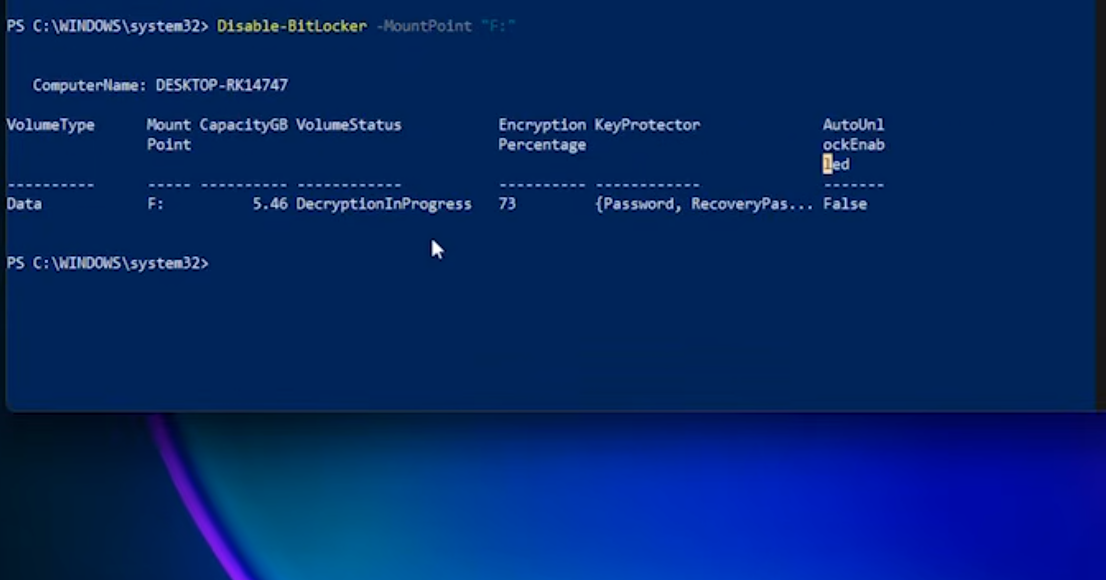
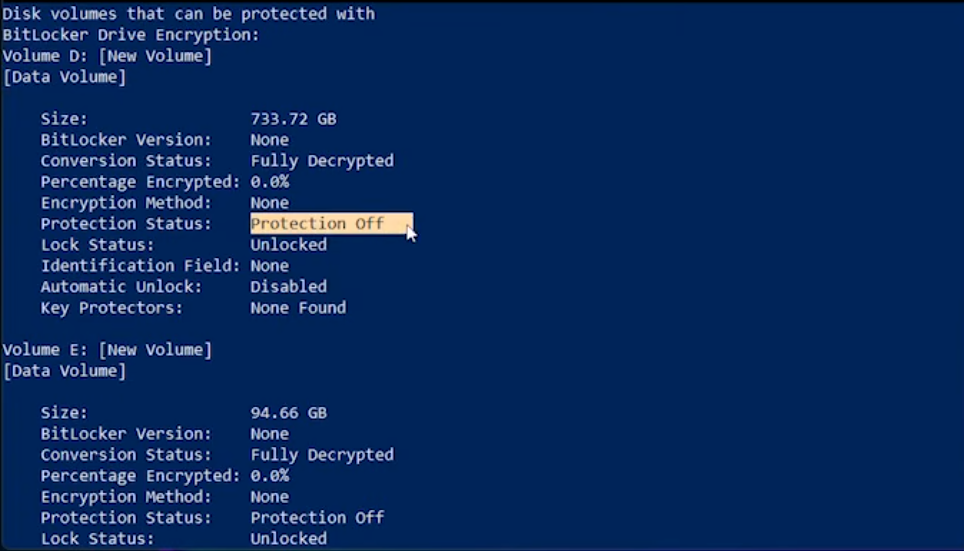
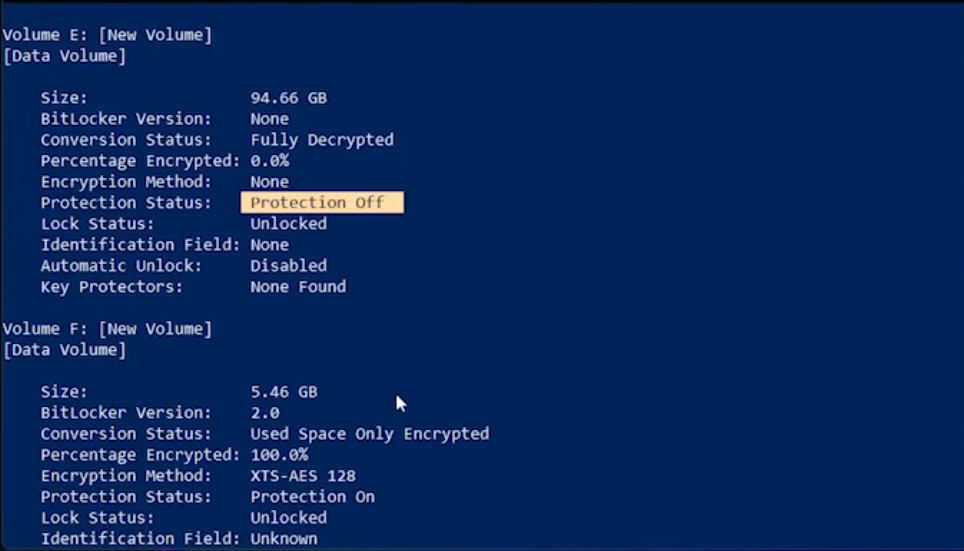
Look for the drive letter that shows BitLocker protection enabled, such as F:. Note the drive
letter because you will use it in the next command.
Step 3: Disable BitLocker
Replace the drive letter below with the one shown in your output:
Disable-BitLocker -MountPoint "F:"This starts the decryption process. Depending on how large your drive is, it can take a few minutes or several hours. You can keep using the PC while it works in the background.
Step 4: Confirm BitLocker Is Fully Off
Once the process is finished, run:
manage-bde -off F:
You can verify the status again with manage-bde -status. The drive should say it is fully decrypted
or that protection is off.
Now You Are Ready to Install Ubuntu
With BitLocker disabled, Ubuntu can safely resize the Windows partition and continue the dual boot installation. If you have not started the setup yet, follow the beginner-friendly dual boot guide to continue with the install.
Quick Troubleshooting
| Issue | Fix |
|---|---|
| Access is denied | Open PowerShell as administrator and run the commands again. |
| Decryption is taking too long | Let it finish in the background and check the status again later. |
| BitLocker asks for a recovery key | Use the key saved to your Microsoft account or the document you kept when BitLocker was first enabled. |
Turning BitLocker Back On Later
After your dual boot setup is stable, you can re-enable BitLocker from Settings > Privacy & security >
Device encryption, or by running Enable-BitLocker in PowerShell. This only affects the Windows partition
and does not remove your Ubuntu installation.
More beginner guides